Instructions
01:
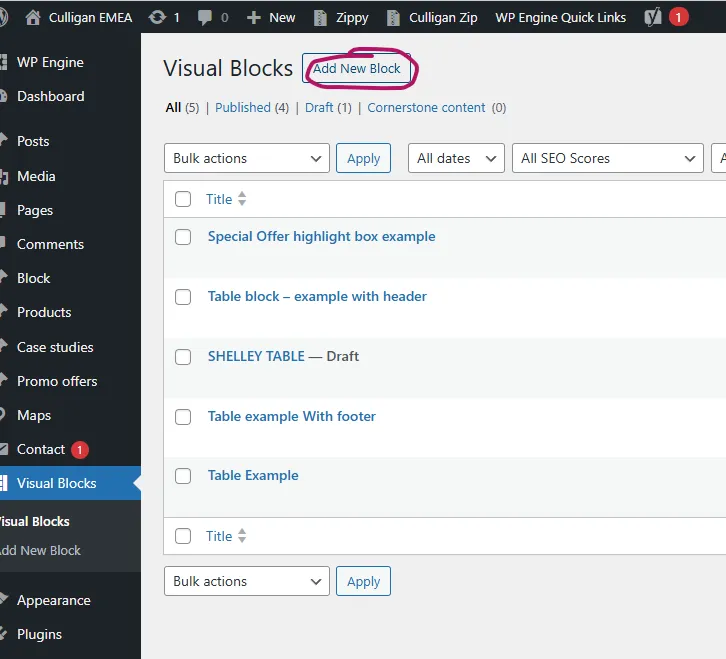
In the backend, click ‘Visual Blocks’ on the left hand side.

02:
Create a new block
03:
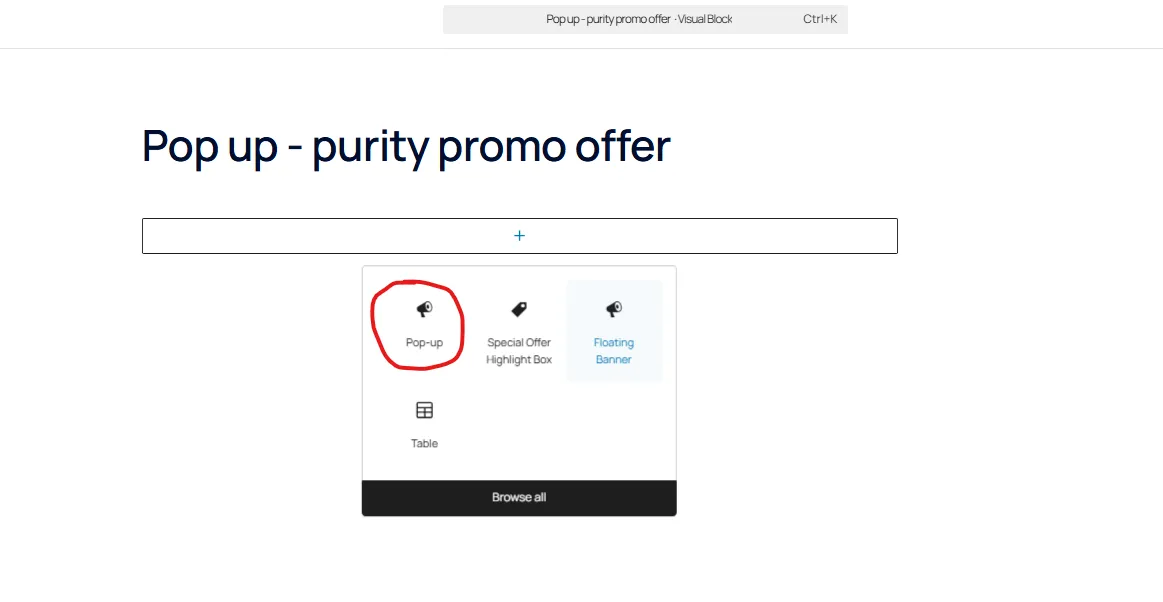
Create a new block – please give a meaningful name that is easy to reference.
Choose: Pop-up
04:
On the right site you edit the content
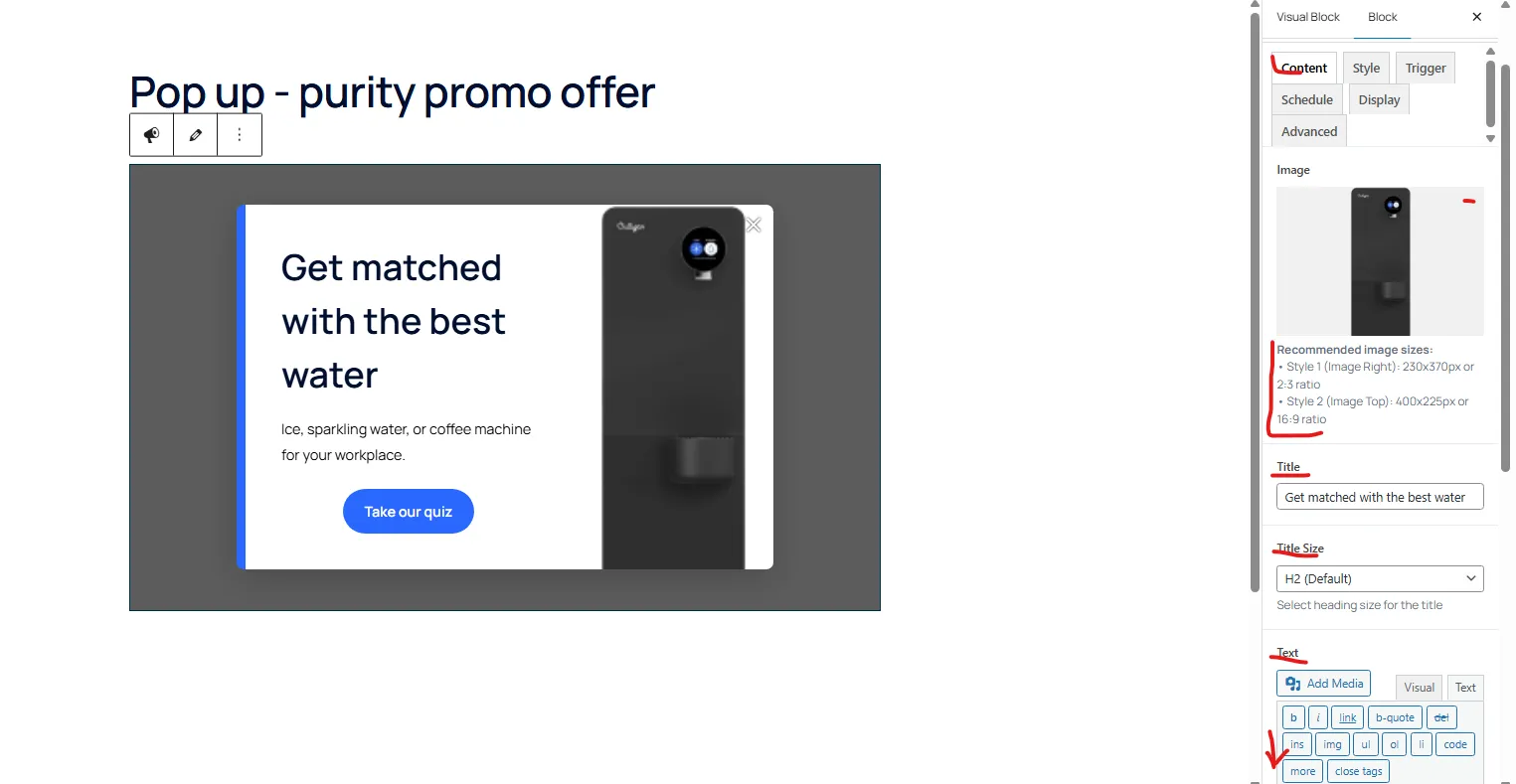
Content: Add the image – follow the recommended image sizes. You can fill the title, edit the title size, ability to add the text, button text, button URL, Button position
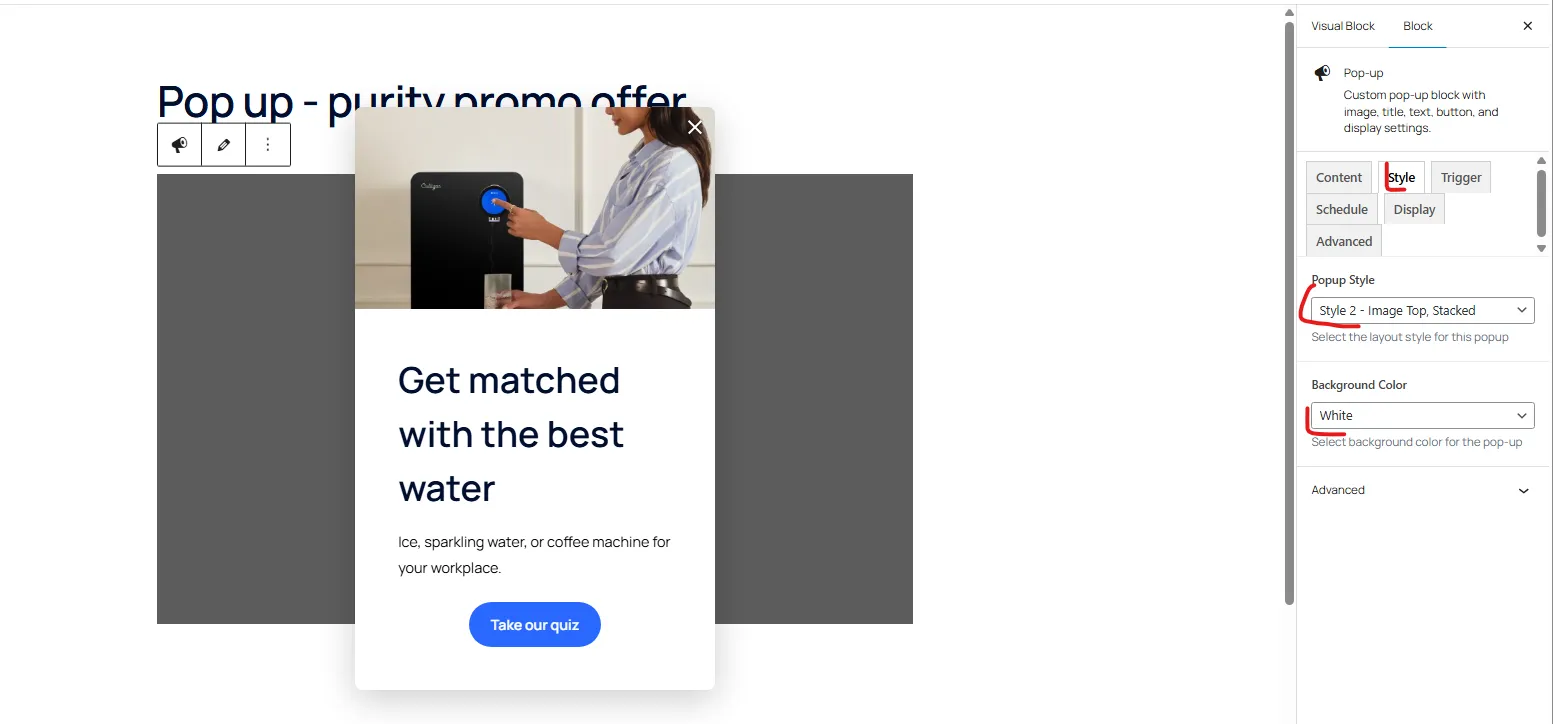
Style: Choose your style: Image on Top, image on right, also ability to choose background color : white/gray
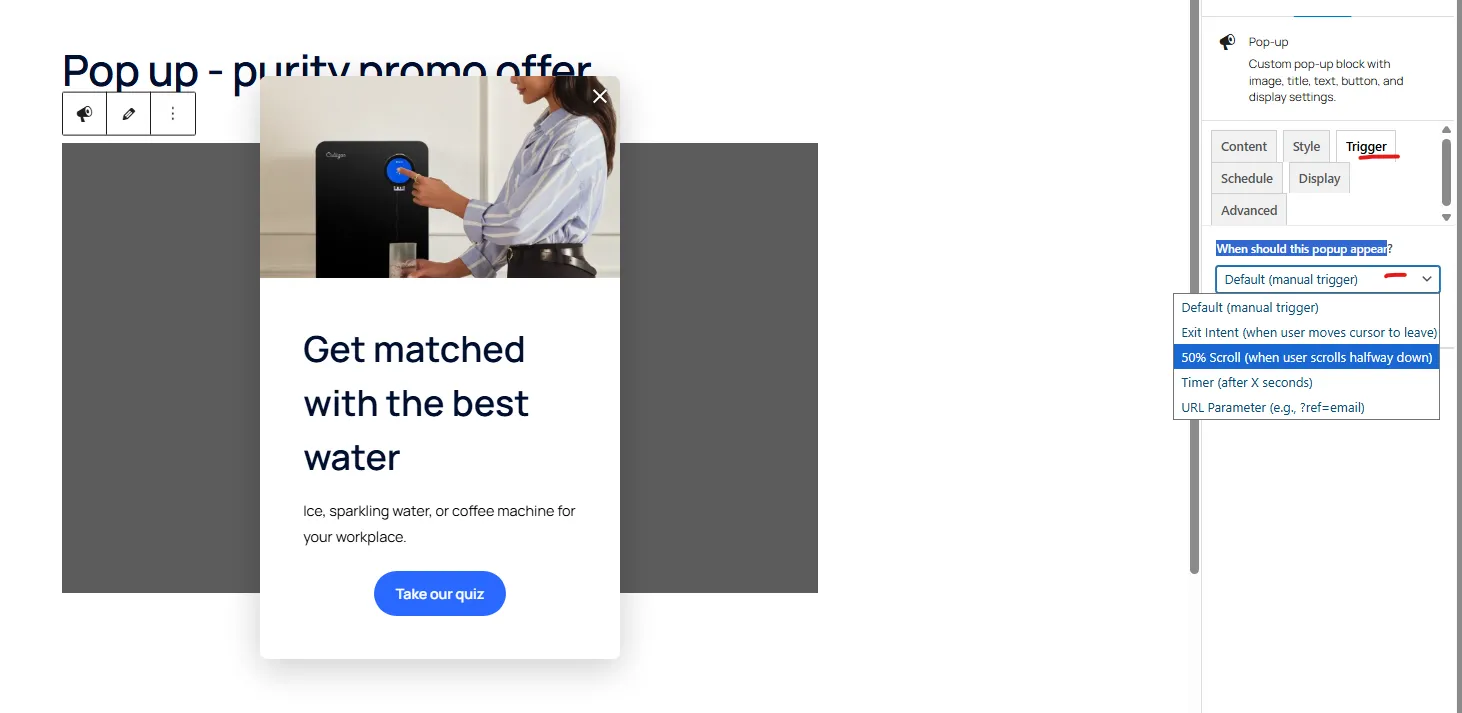
Trigger: Choose from the options in the select when should this popup appear:
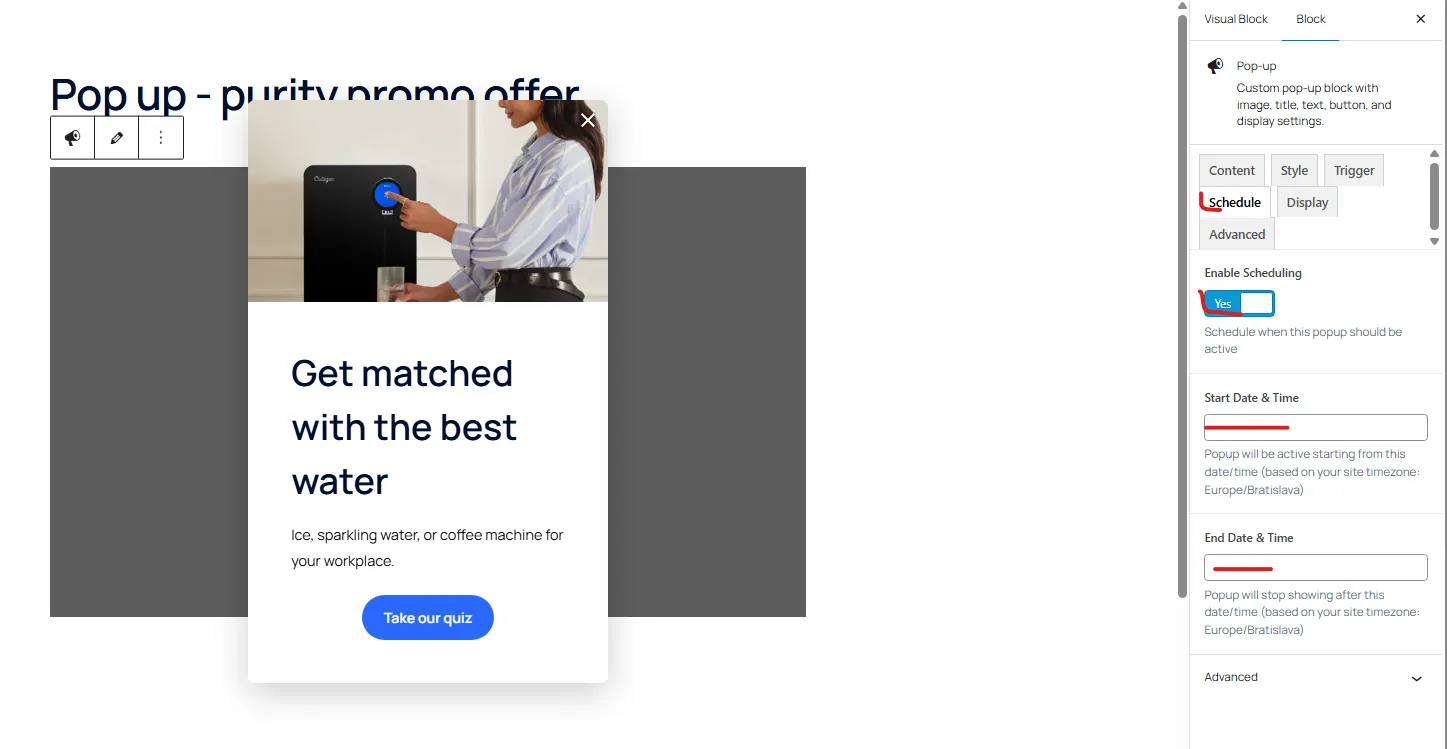
Schedule: You can enable scheduling and than you can Schedule when this popup should be active:
Display: You can choose from the select where this pop up should appear:
Advanced: Here you can set how often should users see this pop up and also you can set the pop up position:
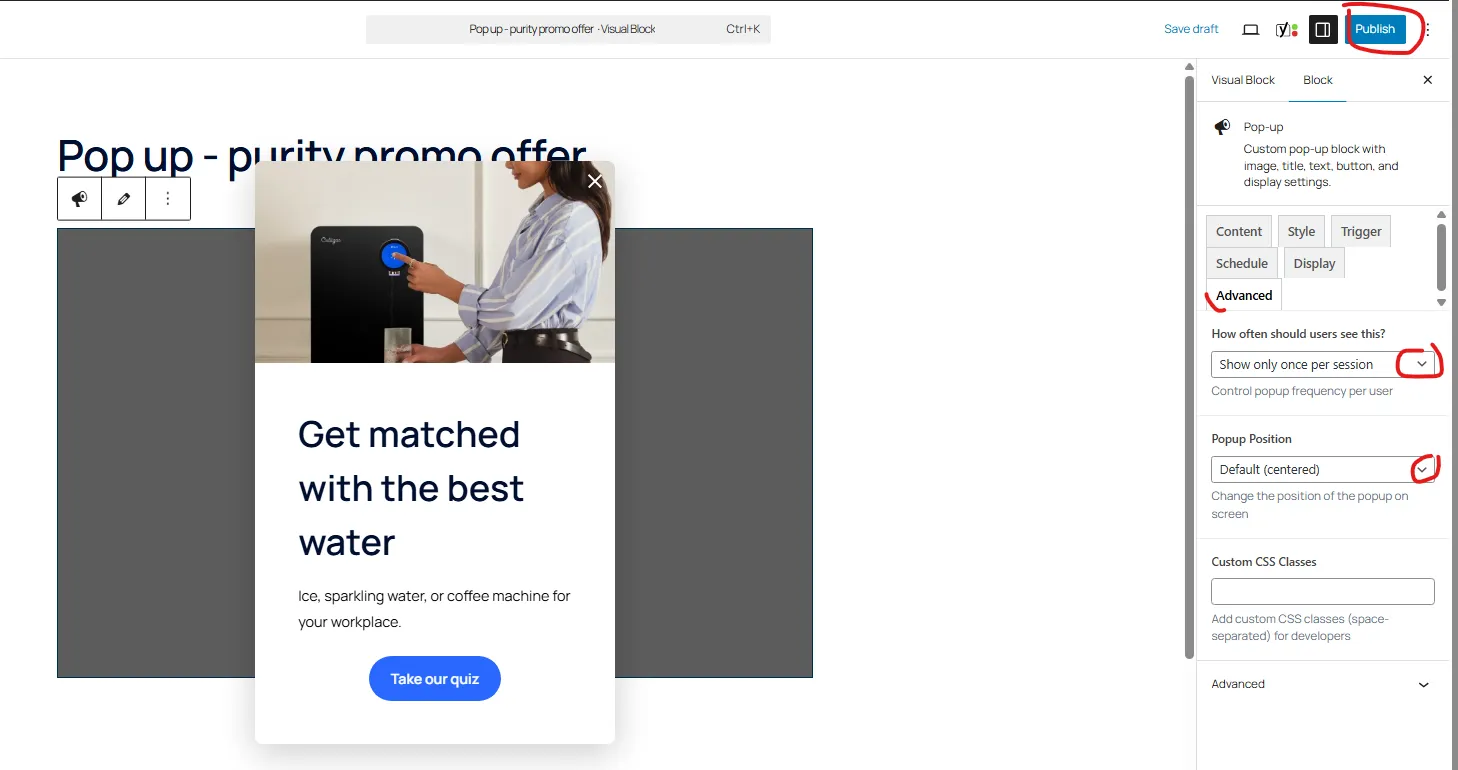
When you are done with editing, Publish